










Frostshot app icon

One island. Every screenshot.

Draw a selection and one glass island rises beneath it: the tool, the colour, Copy. Mark it up in place and press ⏎. Blazing fast, light on your Mac, native Swift.

macOS 26 or later · English and Spanish · Everything stays on your Mac

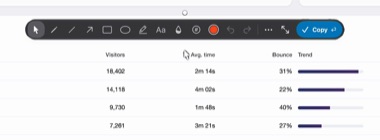
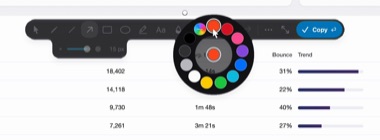
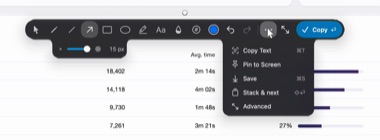
The frozen screen a moment earlier: the dashboard with the selection drawn, no island yet The island at rest under the selection: the armed tool, the colour bead, the size and Copy Frostshot's quick mode over an analytics dashboard: the selection lifted off the screen, an orange arrow drawn on the chart, and the island under it, open, with the arrow tool armed, its width lobe, the shortcut caption and the Copy button

How it works

  1. Press ⌥⇧1.

    The screen freezes the instant you press the shortcut, so what you see is what you get. No window juggling, no countdown.

  2. Drag over what matters.

    Handles let you nudge any edge afterwards; drag inside to move the whole selection.

  3. The island rises.

    One glass capsule under the selection: the armed tool, the colour, the size, and Copy. Nothing else on screen.

  4. Come closer. It opens, and stays.

    The tools unfold, a droplet marks the one you pick, and a lobe grows out with its stroke width. Draw. It stays open until you fold it, and every edit is already on the clipboard.

  5. Press ⏎.

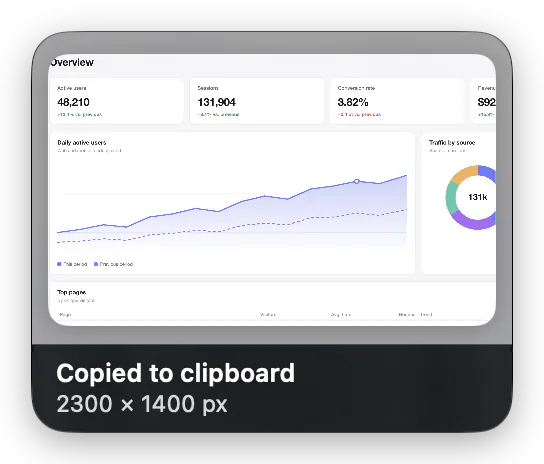
    The overlay is gone and the capture waits as a glass card in the corner: copy, edit, pin, save, or drag it into a chat. ⇧⏎ keeps it and opens the next one, ⌥⏎ parks it for later.

What it does

One shortcut. Everything you usually open three apps for.

Quick when you need a copy, deep when you need a picture worth sharing. Both from the same selection.

Quick edit

The island, not a toolbar.

At rest it is one quiet capsule. Hover and it flows open into the tools: box, arrow, line, ellipse, highlighter, text, blur, counters. Click the colour bead and a ring of colours blooms out of it; the … lobe keeps Copy Text, Pin, Save, Stack and Advanced one click away.

  • Always by the selection, never off screen, even in a corner
  • Undo, redo, and a stroke lobe that changes the selected mark live
  • Stays open until you fold it with ‹, wherever the pointer goes
  • ⏎ copies and closes · ⇧⏎ stacks and captures another · ⌥⏎ keeps it for later
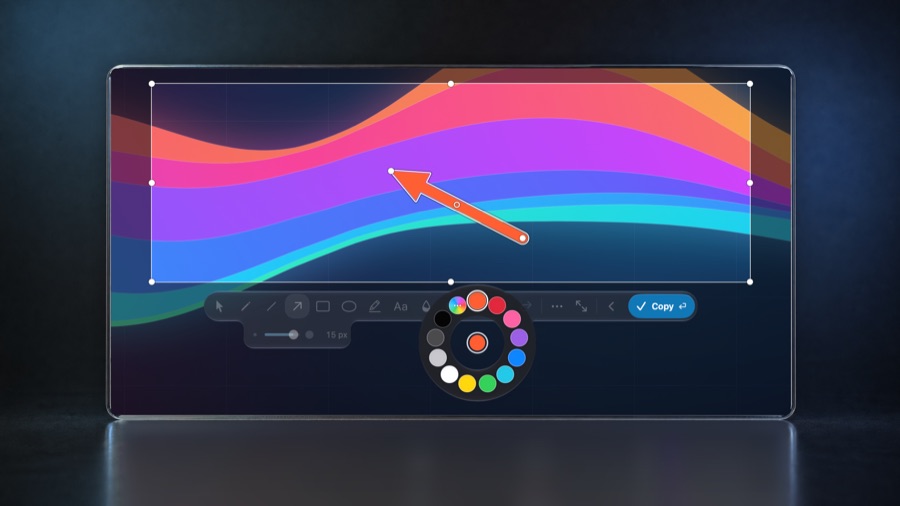
A close view of the island on a glass display: the tool strip with the arrow armed, the stroke lobe at 15 px, the Copy button, and the colour ring bloomed out of the bead with twelve colours
Opens as you approachRest is a capsule; near it, the tools unfold and the lobe follows the armed tool.
Colours bloom from the beadTwelve colours on a ring, a tap away. More colours and favourites behind the last one.
Everything else under …Copy Text, Pin, Save, Stack and Advanced grow out of the island; a click anywhere folds them back.
The island open under the selection with the arrow armed and its stroke lobe, the pointer far away from it
Open stays openMove the pointer anywhere and the island stays as it is: no tool closes under your hand while you work.
The island folded back to rest: the armed tool, the colour bead, the size and Copy
Folded by youThe ‹ button folds it back to a quiet capsule. Open or folded, it is your call.

Advanced editor

Frame it like you meant it.

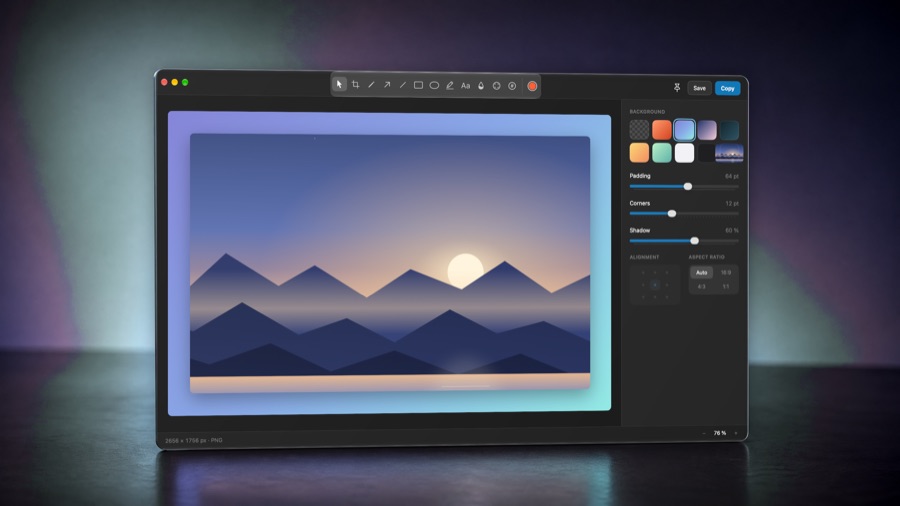
Gradients, solid colours or your own wallpaper behind the shot. Padding, corners and shadow on sliders. Annotations stay editable objects, and every change is copied as you make it.

  • Six gradients, two solids, the current desktop
  • Blur works on the original pixels, so it really hides things
  • Crop, spotlight, curved arrows, aspect ratio 16:9, 4:3 or 1:1
The advanced editor as a glass panel in a dusk-lit studio: a landscape capture framed on a blue-to-teal gradient, the tool strip on top, Save and Copy, and the sidebar with background swatches, padding, corners and shadow sliders

Copy Text

Text from the screen, with its shape intact.

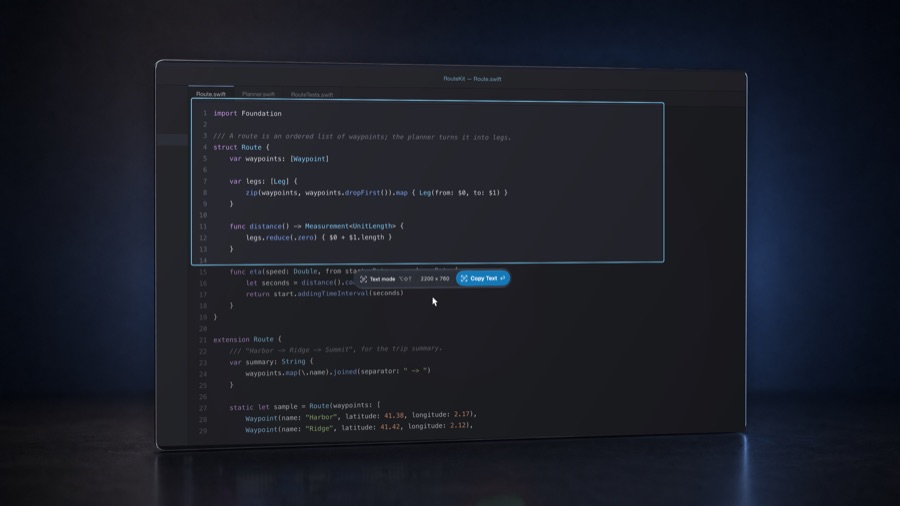
Select any text on screen, even inside an image or a video call, and it lands on the clipboard with the same line breaks and indentation. Recognition runs on your Mac, in English and Spanish, and knows the difference between code and prose.

  • ⌥⇧⌘T keeps the formatting · ⌥⇧T one paragraph per line
  • Keeps ->, => and items.count as written
  • The island reads Text mode and Copy Text; your keyboard focus stays where it was
Text mode over a dark code editor on a glass display: a glacier-blue outline around a Swift struct and the island under it reading Text mode, the size, and Copy Text

Stack and pins

Captures wait in the corner. Or float anywhere.

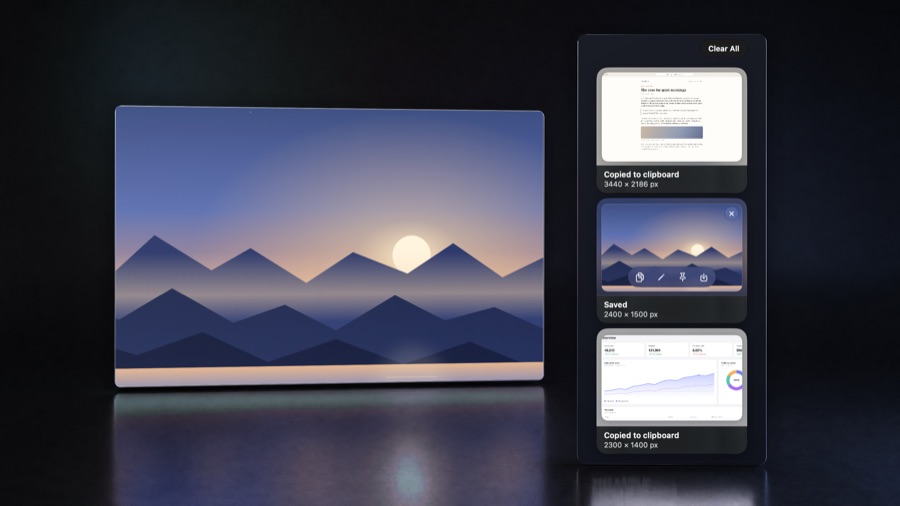
Every capture becomes a glass card at the bottom right: copy, edit, pin, save or drag it straight into Finder or a chat. Take several in a row and they stack. Pin one and it floats above everything, resizable with a pinch.

  • Up to ten cards; hover to fan them out
  • Cards never steal focus and never show up in your next capture
  • Pins: ⌘C copies, esc closes, scroll to resize
A pinned landscape capture floating as a glass panel on the left and, on the right, the stack of three capture cards with Clear All above them, in a dark studio

Keep for later

Park it now. Edit it when you are ready.

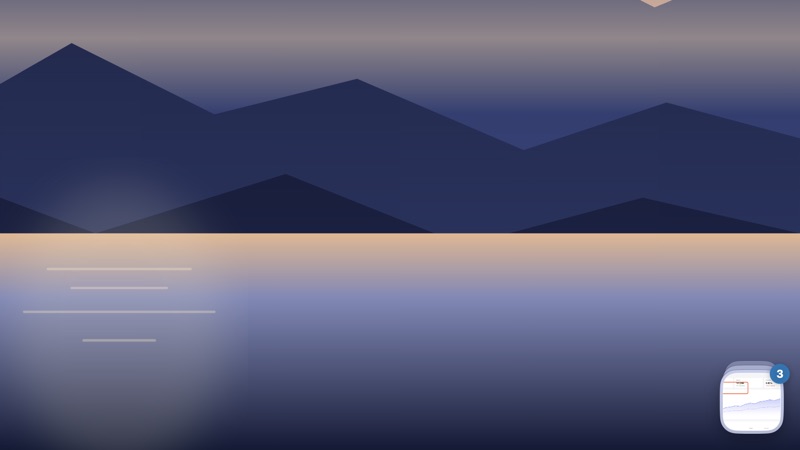
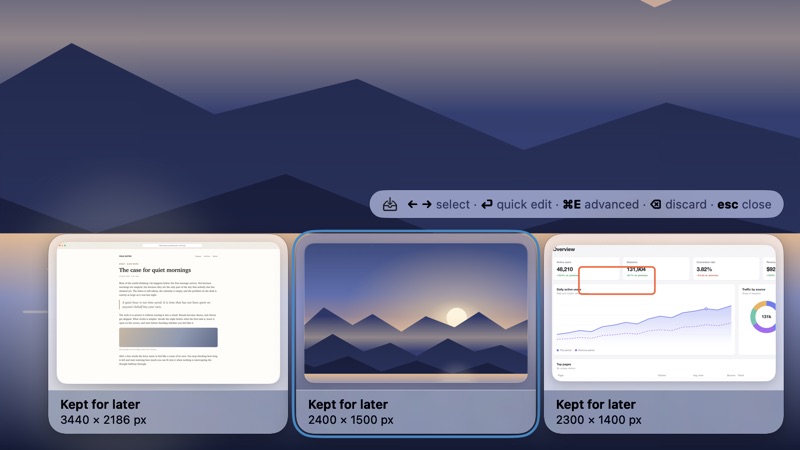
Not done with a capture? Press ⌥⏎ on the island and it folds into a small glass tile in the corner, out of your way and out of your next capture. ⌥⇧L opens the shelf: arrow through what you kept, ⏎ to quick edit one, ⌘E to open it in Advanced.

  • Nothing is copied or saved until you decide; every annotation stays an object
  • Keyboard first: ← → to choose, ⌫ to discard, esc to put the shelf away
  • Optional: restore the shelf after quitting, stored only on your Mac
The corner of a desktop, wide and quiet: only a small minimized glass tile with the number 3 on its badge sits in the bottom right The shelf open along the bottom of the desktop: three kept captures as glass cards, the middle one selected with a ring, and a hint above them listing the arrow keys, Return for quick edit, Command E for Advanced, Delete to discard and Escape to close

Settings

Light, dark, or whatever your Mac is doing.

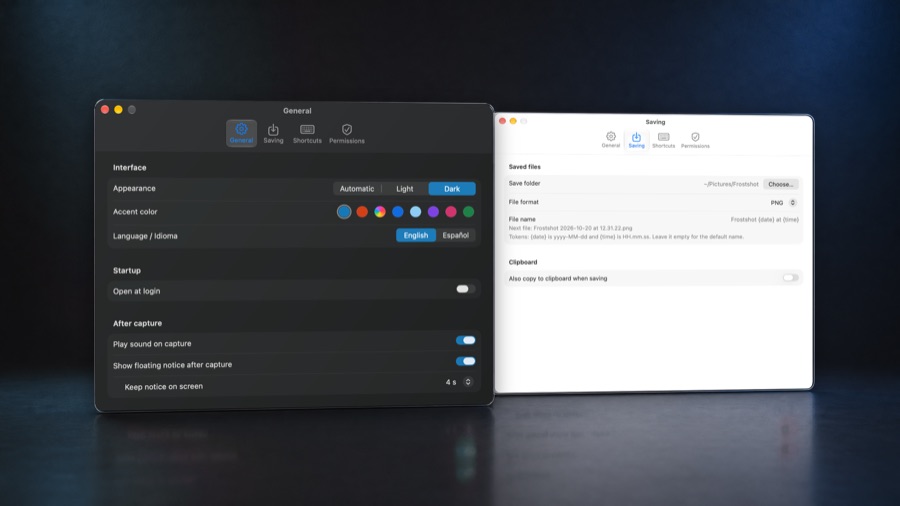
Appearance follows the system or your choice, and every piece of the app changes with it: the island, the editor, the cards, the pins, the menus. Every global shortcut can be remapped, and a clash is spelled out under the recorder before it bites.

  • English or Spanish, switched in place
  • Save folder, PNG or JPEG, file name pattern with {date} and {time}
  • Open at login, capture sound, how long the notice stays
Two Settings windows as glass panels in a dark blue studio: the General tab in dark appearance in front, with the accent colour row and Frost selected, and the Saving tab in light appearance behind

Area, window, screen

Four ways in, one way out.

Hover a window and click to capture it alone, corners and transparency included. Grab the whole screen under the cursor, or repeat the exact rectangle from last time. Every mode ends on the same island.

⌥⇧1AreaDrag a rectangle, then mark it up on the island.
⌥⇧2WindowHover a window, click. Clean corners, no desktop behind it.
⌥⇧3FullscreenThe whole display under the cursor, in one go.
⌥⇧RRepeat lastThe same rectangle as last time, for before-and-after shots.

Accent colour

Make it yours.

Frost, a glacier blue, is the default. Pick another, or let it follow your Mac. Copy takes it everywhere, and its text turns dark on its own when white would not read.

The open island under a selection, with the arrow tool armed and its width lobe; its Copy button takes the accent colour picked below

Frost · the default

Fast and light

Blazing fast. Light on your Mac.

A native Swift app, not a web page in a window. The overlay is on screen before your hand leaves the keyboard, and the whole thing idles in the menu bar without asking for your memory or your battery.

Blazing fast

The capture overlay appears in a blink, in every mode: area, window, fullscreen, repeat. Copy is instant, and the advanced editor opens with the picture already there.

Low on system resources

Tens of megabytes, not hundreds, even right after a capture. Nothing runs in the background between shots, and nothing phones home.

Native Swift

AppKit, SwiftUI and macOS 26's glass. No Electron, no web view, no bundled runtime. Text recognition is the system's own, on device.

Measured on the installed build on a MacBook Pro: the overlay in under 100 ms in every capture mode, about 75 MB of memory after a capture.

Shortcuts

Hands on the keyboard.

⌥⇧1Capture area
⌥⇧2Capture window
⌥⇧3Capture fullscreen
⌥⇧⌘TCopy text, formatted
⌥⇧TCopy text, plain
⌥⏎Keep for later
⌥⇧LShow the shelf

Also ⌥⇧R repeats the last area and ⌥⇧E opens the editor. ⌥⏎ works on the island while you capture; ⌥⇧L works anywhere. On the island, Tab and the arrow keys walk the tools. The global ones can be changed in Settings.

Pricing

Pay once. Keep it.

No subscription, no account, no upload. Frostshot is a small app that does its job on your Mac and stays out of the way.

Launch price

Frostshot for Mac

US$4.99one-time
  • The island, the advanced editor and Copy Text
  • Stack, pins, window and fullscreen capture
  • Light and dark, English and Spanish
  • Updates included
Download for Mac

macOS 26 or later. Price and terms are placeholders until launch.

Questions

The short answers.

Does anything leave my Mac?

No. Captures go to your clipboard or to a folder you choose. Text recognition runs on-device with the system's own engine. There is no account and no server.

Which permissions does it need?

Screen Recording, to capture the screen. Accessibility is only needed for the global shortcuts. Settings shows what is granted and opens the right pane for what is not.

Can I work the island from the keyboard?

Yes. Tab moves into it, the arrow keys walk the tools, ⏎ copies, esc folds the ring, then the menu, then cancels. Every control has a VoiceOver label.

Does Copy Text work with code?

Yes. When it looks like code, the text is read again without language correction, so identifiers like items.count and arrows like -> come through as written. Indentation is reconstructed from where each line sits on screen.

Can I change the shortcuts?

Every global shortcut has a recorder in Settings. If a combination is already taken by macOS, another app, or another Frostshot action, a clear message under the recorder says so and why, and nothing fails silently. A key another app grabbed at launch is flagged in the menu bar too.

What happens to the captures I keep for later?

They wait on the shelf in the corner while Frostshot runs, with their annotations still editable. If you turn on restoring in Settings, they come back after a restart; they are stored in Frostshot's folder on your Mac and nowhere else, and discarding one deletes it.

What about Spanish?

The whole app is available in English and Spanish, and text recognition reads both, accents included.